
Yono Games Login & Register: Full Step-by-Step Guide
A step-by-step guide to Yono Games register and login on the APK and mobile browser, plus quick fixes for OTP, password and blank-screen errors.
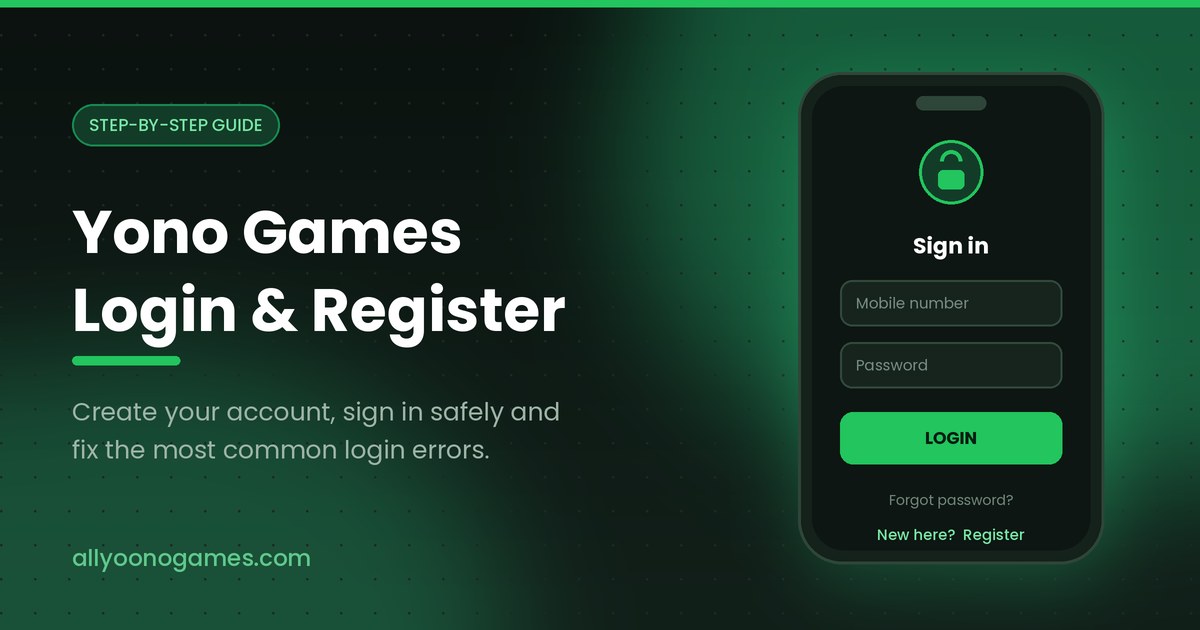
Table of contents
If you are new to Yono Games, everything starts with one step: create an account and sign in. This guide walks you through the complete Yono Games login and register process on both the APK and the mobile browser, and then fixes the sign-in errors that people run into most often.
What You Need Before You Register
- An Android phone with some free storage for the app.
- A working mobile number that can receive an SMS or OTP code.
- A stable internet connection, either Wi-Fi or mobile data.
- The latest Yono Games APK, or the web version opened in Chrome.
How to Register a New Yono Games Account
- Open the Yono Games app, or load the site in your mobile browser.
- Tap Register (sometimes labelled Sign Up) on the welcome screen.
- Enter your mobile number and choose a strong password, ideally eight characters or more with a mix of letters and numbers.
- Re-type the password in the confirmation box so both fields match exactly.
- Request the OTP and type in the code that arrives by SMS.
- Add an invite or referral code if you were given one. This field is optional, so leave it empty if you do not have one.
- Agree to the terms and tap Register. The account is created and you are usually signed in right away.
Note your number and password down somewhere safe before you carry on. Most of the login trouble new players report comes down to a mistyped password rather than a problem with the app.
How to Log In to Yono Games
Login on the APK
- Open the app from your home screen.
- Tap Login on the first screen.
- Type the mobile number you registered with, then your password.
- Tap Login and wait for the lobby to load.
Login in a Mobile Browser
- Open Chrome and go to the site you normally use.
- Tap the Login button in the top corner of the page.
- Enter your number and password, then submit the form.
- Add the page to your home screen if you would rather not install the APK at all.
How to Reset a Forgotten Password
- On the login screen, tap Forgot password.
- Enter the mobile number tied to your account.
- Request a verification code and enter the OTP you receive.
- Set a new password, confirm it, and save.
- Go back to the login screen and sign in with the new password.
Common Login Problems and How to Fix Them
Invalid account or password
Check the number first, including the country code format the app expects, and re-type the password by hand instead of letting autofill do it. Caps Lock and a stray space at the end of the field are the usual culprits. If it still fails, run the password reset above.
The OTP never arrives
Wait a full minute before requesting a second code, since repeated requests often reset the timer. Check your spam or blocked-messages folder, make sure your balance allows incoming SMS, and try again on a different network if you can.
The app opens on a blank or loading screen
Close it completely, clear the app cache from Android settings, then reopen it. If nothing changes, reinstall the latest APK version and try the browser login in the meantime to confirm your account itself is fine.
Account locked after too many attempts
Several wrong passwords in a row can lock sign-in for a short cool-down period. Leave it for fifteen to thirty minutes, then reset the password rather than guessing again.
Login works in the browser but not in the app
That almost always means the installed APK is out of date. Download the current version, install it over the old one, and sign in again.
Tips to Keep Your Account Safe
- Use a password you do not reuse anywhere else.
- Never share your password or OTP, no matter who asks for it.
- Keep your registered mobile number active, because it is how you recover the account.
- Only install the APK from a source you trust, and avoid modified versions that promise extra rewards.
- Log out when you hand your phone to someone else.
Frequently Asked Questions
Can I register without a mobile number?
No. The number is what verifies the account and what you use to recover it later, so registration needs a number that can receive an OTP.
Can I use one account on two phones?
You can normally sign in on another device with the same number and password, though being active on two devices at once may sign you out of the first one.
Is a referral code required?
No. It is an optional field and registration completes perfectly well without it.
How do I change my password?
Open your profile or account settings inside the app and look for the password option. If you cannot get in at all, use the forgot-password flow instead.
I forgot which number I registered with. What now?
Try the forgot-password screen with each number you may have used. Only the registered one will accept the request and send a code.
Final Thoughts
The Yono Games login and register steps take a couple of minutes once you know the order: register with your number, verify the OTP, set a password you will remember, and keep the app updated. If sign-in ever breaks, work through the fixes above from the top before reinstalling anything.
All Yono Games is an independent information site and is not the official operator of any app mentioned here. Content is for general guidance only. Play responsibly, and only where this kind of gaming is legal for you.


